top of page

Customer Analytics HubSpot Setup

Basic Instructions to Get Started with Customer Analytics

Contact Support if you need assistance

  1. Log in to your HubSpot account

  2. Click the install now link at www.skuworld.com/HubSpot-customer-analytics

  3. You will be brought to the HubSpot OAuth account choice page

  4. Choose the HubSpot account you would like to use for Customer Analytics

  5. You will be brought to the HubSpot connection page

  6. Press Connect App 

  7. You will be brought to SKUWorld's landing page

  8. Choose to sign into an existing SKUWorld organization, create a new organization with billing directly through your Microsoft account (will be billed on use), or create a new organization with billing through Stripe (credits purchased up-front). Just a reminder, billing is done on a per-record-matched basis

  9. If you choose an existing account:

    1. ​Log into your SKUWorld account​

    2. Read through and agree to the terms and conditions

    3. Click 'Purchase' under Record Info to buy credits

  10. If you choose Microsoft billing:

    1. ​Click Get It Now

    2. Sign in to your Microsoft account

    3. Subscribe to the per record plan

    4. Choose a subscription and resource group, then name the plan and apply tags if desired

    5. Update contact details if necessary

    6. Finish the subscription

    7. Give it a minute to set things up, then press Configure account now

    8. You will be redirected to SKUWorld

    9. Press continue, then enter your Microsoft email

    10. Accept the permissions request

    11. Read through and agree to the terms and conditions

  11. If you choose Stripe billing:

    1. You will receive an email from SKUWorld to finish setting up your organization

    2. Pull up the email from SKUWorld, check your spam folder if you don't see one within a couple minutes

    3. Go to app.skuworld.com, enter your email address - this is associated to your HubSpot account and you will see the exact address in the "To" line in the email you received from SKUWorld

    4. Press Continue

    5. Enter the password from the email you received from SKUWorld.  This password can be changed after you log in

    6. Read through and agree to the terms and conditions

    7. Click 'Purchase' under Record Info to buy credits

  12. Click on the Site Tour to help get started in SKUWorld

  13. If you want to have records in HubSpot automatically get sent to SKUWorld, go to the top right and click on the arrow next to your initial, then choose org admin, then scroll down and expand the 'Settings' menu, then choose the statuses you would like to trigger a record to be sent to SKUWorld and, if matched, billed to your organization

  14. Alternatively, or in tandem, you can use Excel to directly upload records into SKUWorld. As long as the email matches between SKUWorld and HubSpot, you will see the customer demographics card populate in HubSpot

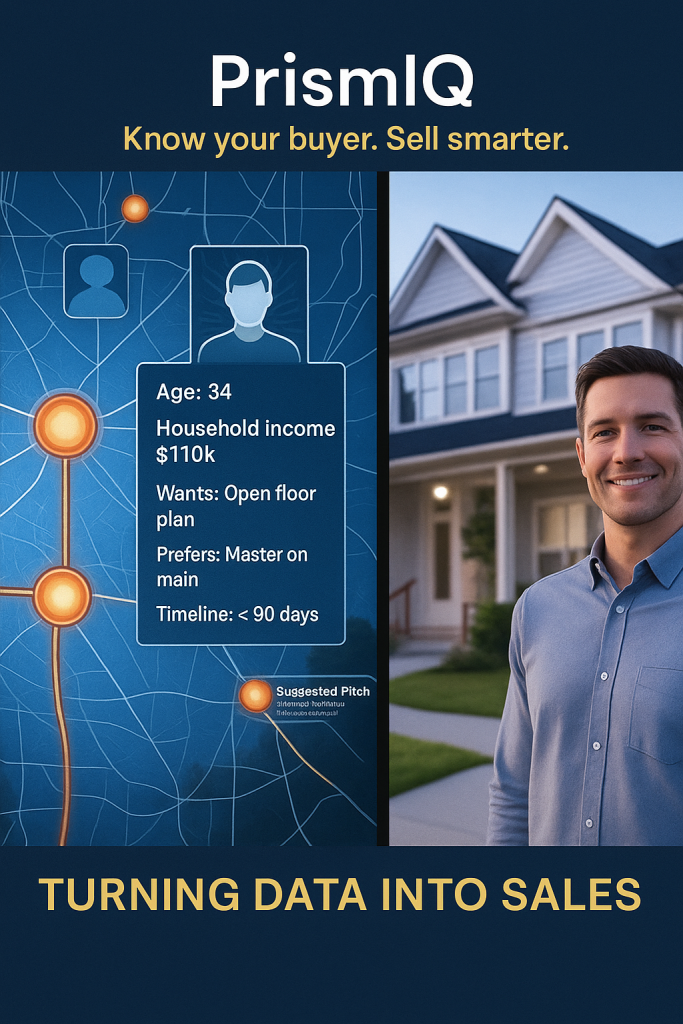
  15. Go back to HubSpot - click on a contact and you should see the 'Customer Demographics' card added to the default view of the Contact.  You can add the card to the right sidebar in other views or move the card up or down in the record customization page editor

  16. To run an existing contact through Customer Analytics, update the lead status to match one of the statuses you selected in the SKUWorld settings.  Then refresh the contact in HubSpot to see the customer demographics card populate

  17. To run an new contact through Customer Analytics, while creating the contact, set the lead status to match one of the statuses you selected in the SKUWorld settings.  Then refresh the contact in HubSpot to see the customer demographics card populate

  18. To view a customer that was uploaded to SKUWorld already, as long as the email matches between SKUWorld and HubSpot, you will see the customer demographics card populate in HubSpot
     

© 2024 by SKUworld

PO Box 218091 Nashville, TN 37221

bottom of page